Student Building Setup Options
Student Building Full Band Setup
Once you get into the building there are 2 main locations, what is considered to be front of house and what is considered to be backstage. Every item on the front of house section must be on the entire time that any backstage items are on.
Turn On
Front of house
Backstage
Turn Off
Backstage
Front of House
Turn On
Front of house
- Use button 9 on the lightswitch on the wall inside the entrance of the worship room for full house light
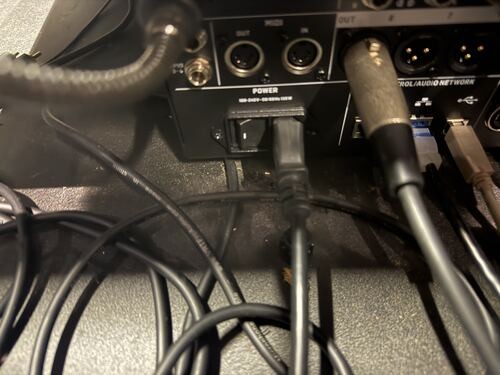
- Power on soundboard using switch on the back right next to power cable (Picture 1)
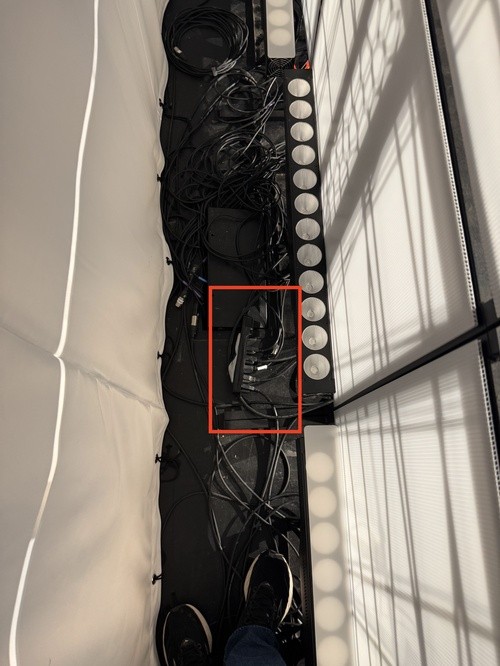
- Turn the key below the board 180 degrees clockwise (Picture 4)
- Turn on waves computer and open the latest show (pw. 2756) click the green and black “sr” icon in taskbar
- If you want to change the show, navigate to the show tab and select your desired show then hit the open button
- Go to the library tab on the soundboard, click snap on the top center bar, and select the desired snap from the list, then click load, then confirm
- Once your snap is loaded hit the user 1 key for a full band and the user 2 key for CR and events
- The red mute button is lit up when the channel is muted
- Turn on the 2 iMacs and (pw. D0gw00d)
- Turn on the switch on the back of the lighting board
- Open Vista 3 on the Left iMac by hovering the mouse over the bottom of the screen to open the dock, and select open show
- Navigate to the downloads folder and open Student Upgrade 2
- Press the play button on the cue list labeled house 4 times for all house lights
- Open ProPresenter on the right iMac and select the desired playlist from top left box
- Open Spotify on the right iMac
- Check the drawers below the lighting iMac and get the black Epson, white Panasonic, black Sharp, and dark grey Samsung remote controls out of the drawer
- Use the smaller dark grey Samsung remote to power on the TVs Behind you
- Use the black Epson remote to power on the side projector
- Use the white Panasonic remote to power on the main left and right projectors
- Use the Black Sharp remote to power on the 2 tvs in the middle of the room, stand in front of the tvs to turn them on, they can be finicky
- Use the larger samsung remote for foyer tvs
Backstage
- Go to the rack room and turn on the 4 sets of paired switches on the back right of the wall by the circuit breakers and then power on the paired switches on the right wall panel
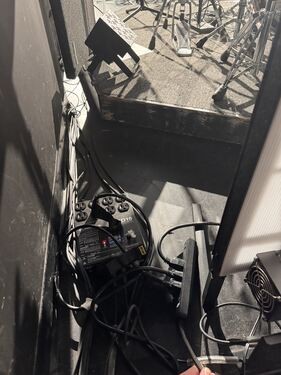
- On the stage, power on the power strip between the white walls on the stage (Picture 3)
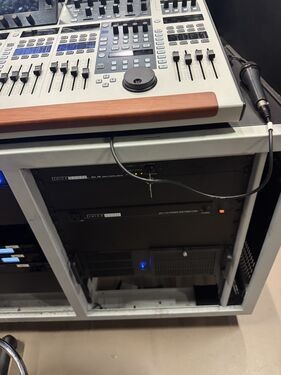
- Power on the power strip and dimmer box behind the drum cage (Picture 2)
- Power on the hazer with the red button
Turn Off
Backstage
- Use the remotes to turn off the tvs
- Turn off the hazer (very important)
- Turn off previously mentioned switches in the back room
- Turn off power strips on stage and dimmer box
Front of House
- Save the student lighting 2 scene on the lighting console. It doesn't matter who last used it and turn off the switch on the back of the board
- Quit out of ProPresenter and Spotify by hitting the command button and q at the same time
- Put macs to sleep by selecting the apple in the top left menu and click sleep
- Quit out of waves by selecting the setup tab in the top center bar and then clicking quit in the bottom left (just save your scene when it asks)
- Put waves computer to sleep
- Turn off soundboard from switch next to power cable
- Turn key back 180 degrees counter clockwise
- Use off button on the lightwitch on the wall
Student Building LifeGroup Setup
Turn On
Front of house
• Use button 9 on the lightswitch on the wall inside the entrance of the worship room for full house light
• Power on soundboard using switch on the back right next to power cable (Picture 1)
Turn the key below the board 180 degrees clockwise (Picture 4)
• On the soundboard next to the screen look for the button labeled “Library,” click snap on the top center bar, select “LifeGroup” then select “Recall” on the far right of the screen. Confirm and the board will change to all mics and ProPresenter audio you need.
• Turn on the ProPresenter iMac (Right iMac next to the sound board and (pw. D0gw00d) Play background music using Spotify. If you are using ProPresenter start the application from the DOC at the bottom of the screen using the mouse.
• Check the drawers below the lighting iMac and get the black Epson remote to power on the side projectors
Backstage
• Go to the rack room and turn on the 4 sets of paired switches on the back right of the wall by the circuit breakers and then power on the paired switches on the right wall panel
• On the stage, power on the power strip between the white walls on the stage (Picture 3)
• Power on the power strip and dimmer box behind the drum cage (Picture 2)
Turn Off
Backstage
• Use the remotes to turn off the tvs and projectors
• Turn off previously mentioned switches in the back room
• Make sure to turn off the two switches on the right wall before turning off the audio board in the next steps
Front of House
• Quit out of ProPresenter and Spotify by hitting the command button and q at the same time. Or in the top menu Select the program name and select Quit from the dropdown menu.
• Put macs to sleep by selecting the apple in the top left menu and click sleep
• Turn off soundboard from switch next to power cable
• Turn key back 180 degrees counter clockwise
• Use off button on the lightswitch on the wall
Front of house
• Use button 9 on the lightswitch on the wall inside the entrance of the worship room for full house light
• Power on soundboard using switch on the back right next to power cable (Picture 1)
Turn the key below the board 180 degrees clockwise (Picture 4)
• On the soundboard next to the screen look for the button labeled “Library,” click snap on the top center bar, select “LifeGroup” then select “Recall” on the far right of the screen. Confirm and the board will change to all mics and ProPresenter audio you need.
• Turn on the ProPresenter iMac (Right iMac next to the sound board and (pw. D0gw00d) Play background music using Spotify. If you are using ProPresenter start the application from the DOC at the bottom of the screen using the mouse.
• Check the drawers below the lighting iMac and get the black Epson remote to power on the side projectors
Backstage
• Go to the rack room and turn on the 4 sets of paired switches on the back right of the wall by the circuit breakers and then power on the paired switches on the right wall panel
• On the stage, power on the power strip between the white walls on the stage (Picture 3)
• Power on the power strip and dimmer box behind the drum cage (Picture 2)
Turn Off
Backstage
• Use the remotes to turn off the tvs and projectors
• Turn off previously mentioned switches in the back room
• Make sure to turn off the two switches on the right wall before turning off the audio board in the next steps
Front of House
• Quit out of ProPresenter and Spotify by hitting the command button and q at the same time. Or in the top menu Select the program name and select Quit from the dropdown menu.
• Put macs to sleep by selecting the apple in the top left menu and click sleep
• Turn off soundboard from switch next to power cable
• Turn key back 180 degrees counter clockwise
• Use off button on the lightswitch on the wall
Student Building CR Set up
This is where the description goes.